Pentru cartea electronică de identitate (CEI)For the Romanian electronic ID card (CEI)
Ai deja o semnătură electronică. E pe buletin.You already have an electronic signature. It’s on your ID card.
Te autentifici pe site-uri, semnezi PDF-uri și îți vezi datele de pe cip. Pe iPhone prin NFC, pe Mac cu un cititor USB sau prin iPhone.Sign in to websites, sign PDFs and see what’s on the chip. On the iPhone over NFC, on the Mac with a USB reader or through your iPhone.
Descărcare gratuită · ID Signer Pro, plată unică · macOS 26 și iOS 26 · Fără contFree download · ID Signer Pro, one-time purchase · macOS 26 and iOS 26 · No account
iPhone
Card citit prin iPhoneCard read through the iPhone
IdentitateIdentity
NumeSurnameEXEMPLU
PrenumeGiven namesANA-MARIA
CNP2••••••••••••
Valabil pânăValid until01.01.2034
CertificateCertificates
AutentificareSign-inP-384
Semnătură avansatăAdvanced signatureP-384
123456
Card Mac
Gata de scanareReady to Scan
Citesc fotografia…Reading the photo…
▰▰▰▰▰▰▰▱▱▱▱▱
Datele rămân la tineYour data stays with youNu avem servere care să le primească.We have no servers that receive them.
Fără cont, fără urmărireNo account, no trackingAplicația nu are statistici și nici reclame.The app has no analytics and no ads.
Salvezi PIN-urile și CAN-ulSave your PINs and CANStau în Keychain; le deblochezi cu Touch ID, Face ID sau parola ori codul dispozitivului.Kept in the Keychain, unlocked with Touch ID, Face ID or your device password or passcode.
Legătură directă Mac–iPhoneA direct Mac–iPhone linkDirect prin Wi-Fi, criptată, fără niciun server la mijloc.Over Wi-Fi and encrypted, with no server in between.
Ce poți faceWhat you can do
Citești cardul, te autentifici și semnezi, pe Mac-ul și iPhone-ul pe care le ai deja.Read your card, sign in and sign documents, on the Mac and iPhone you already have.
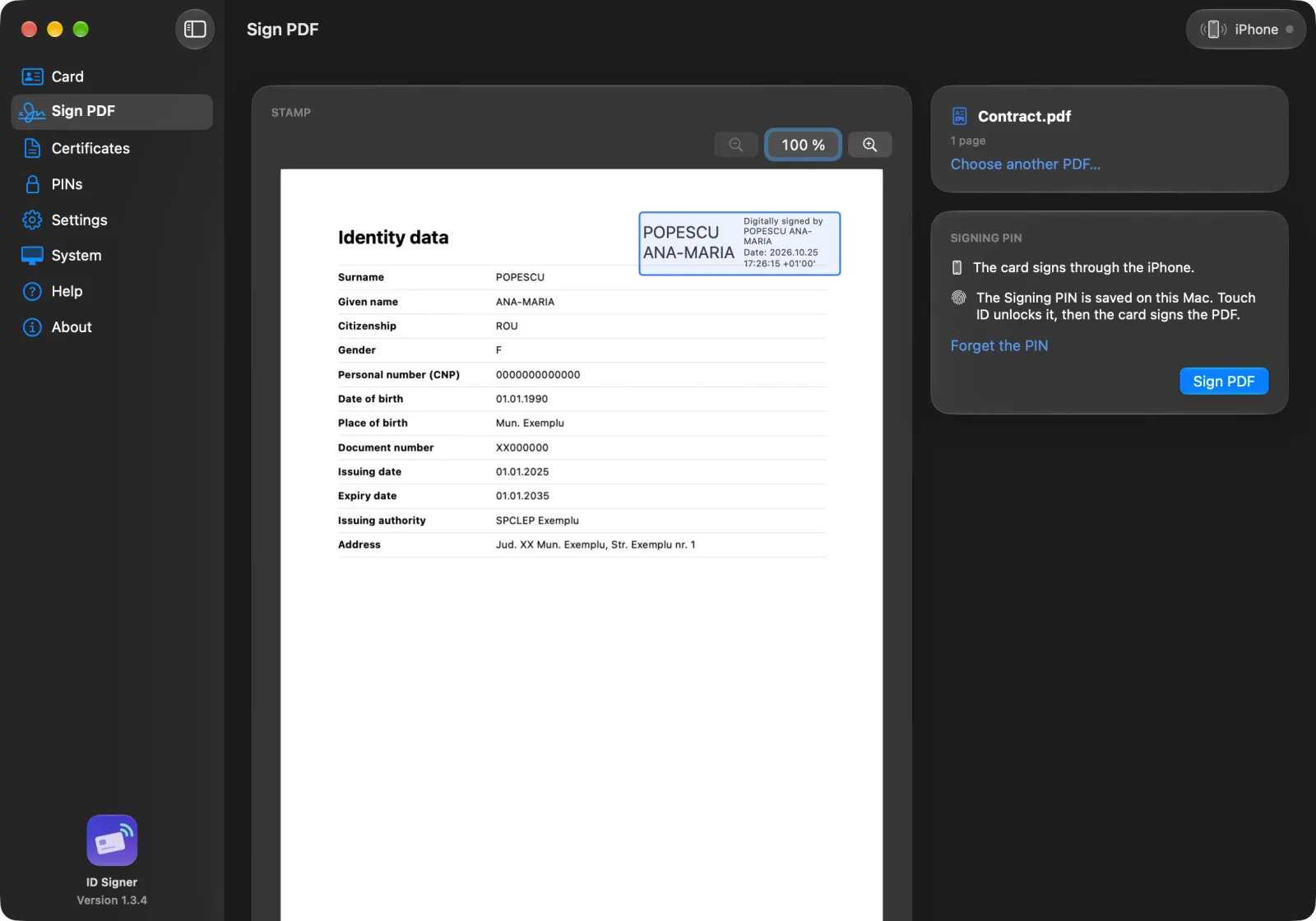
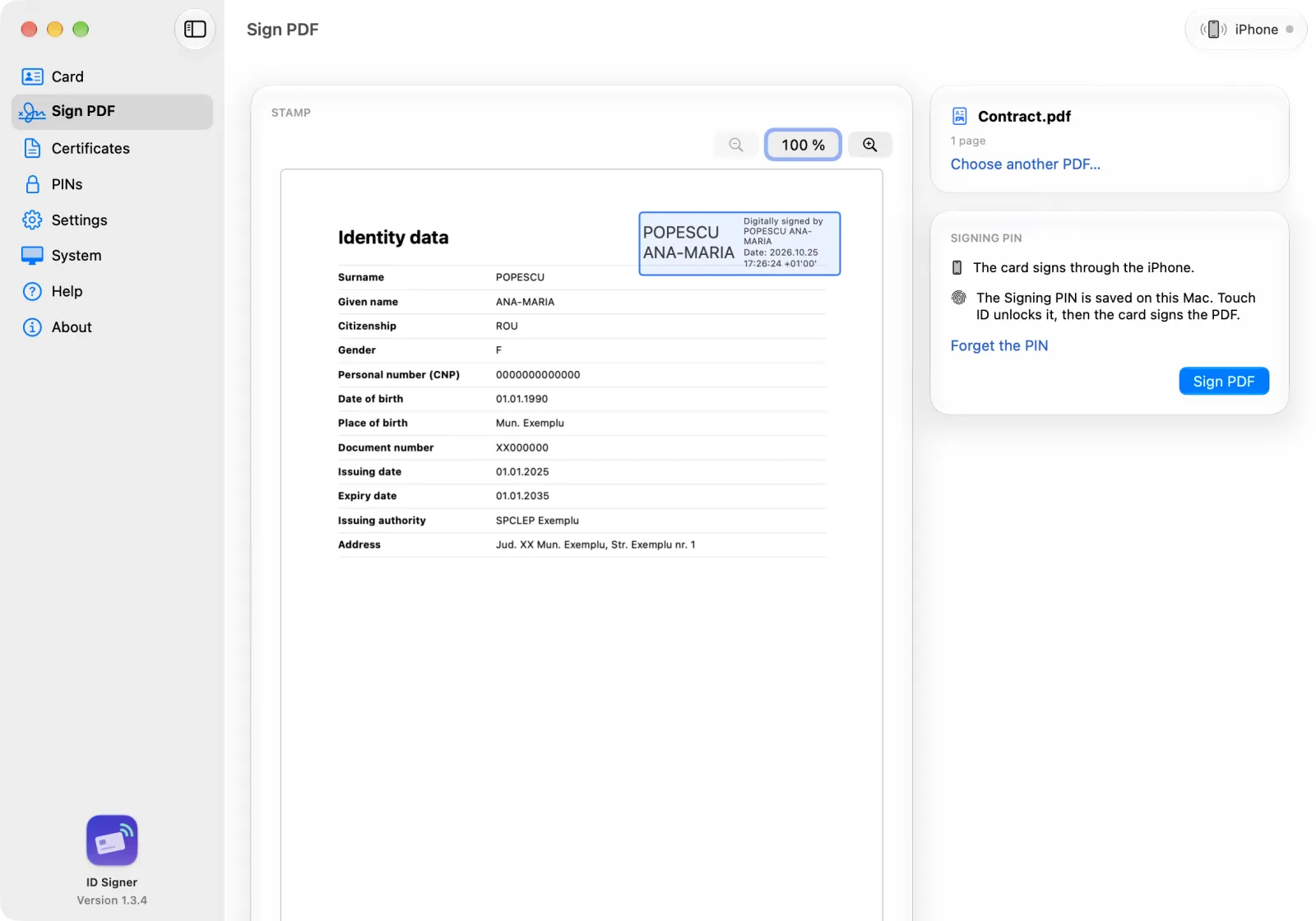
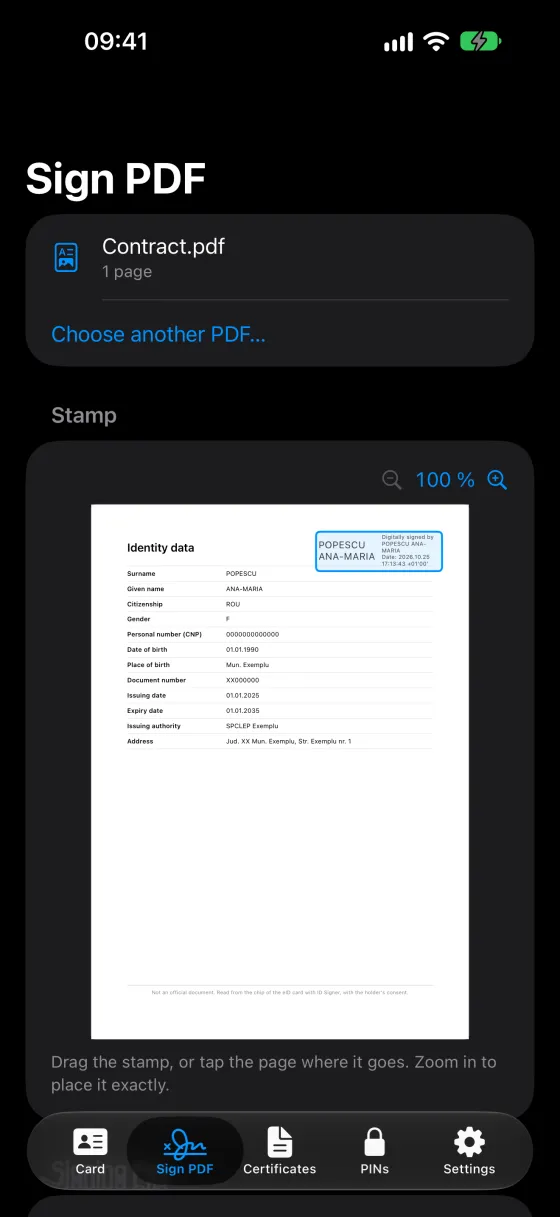
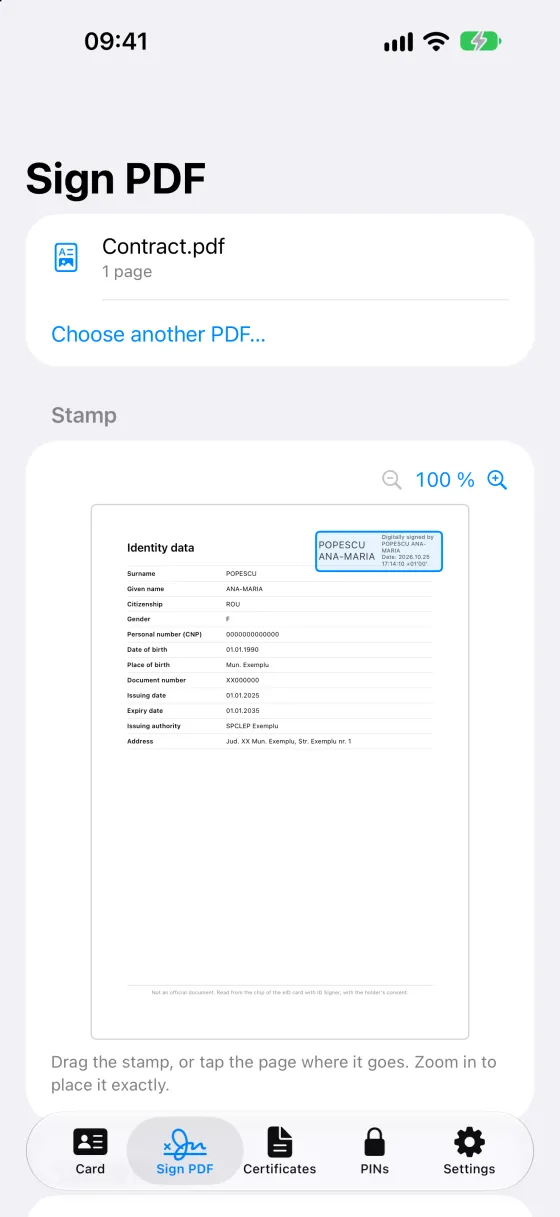
Semnezi PDF-uriSign PDFs
Cu semnătura electronică avansată de pe card. Pui ștampila unde vrei pe pagină, iar aplicația te anunță dacă vede text sub ea. Verifici gratuit semnăturile din orice PDF, de la orice semnatar din UE.With the advanced electronic signature on your card. Put the stamp anywhere on the page, and the app tells you if it spots text underneath. Verify the signatures in any PDF for free, from any EU signer.
Semnat digital deDigitally signed byANA-MARIA EXEMPLUDataDate: 2026.10.24 14:05:31 +03'00'
Te autentifici pe site-uriSign in to websites
Safari, Chrome și Firefox pe Mac, Safari pe iPhone. Când site-ul îți cere certificatul, confirmi cu PIN-ul cardului.Safari, Chrome and Firefox on the Mac, Safari on the iPhone. When a site asks for your certificate, you confirm with your Card PIN.
hub.mai.gov.ro
Alege un certificatChoose a certificate
ANA-MARIA EXEMPLU
Îți vezi datele și fotografiaSee your data and photo
Datele de identitate, adresa, valabilitatea cardului și certificatele. PIN-ul cardului și PIN-ul de semnare le poți schimba direct din aplicație.Your identity details, address, expiry date and certificates. You can change your Card PIN and your Signing PIN right in the app.
DomiciliuAddressStr. Exemplu 1
PIN cardCard PIN3 încercări3 tries
PIN semnareSigning PIN3 încercări3 tries
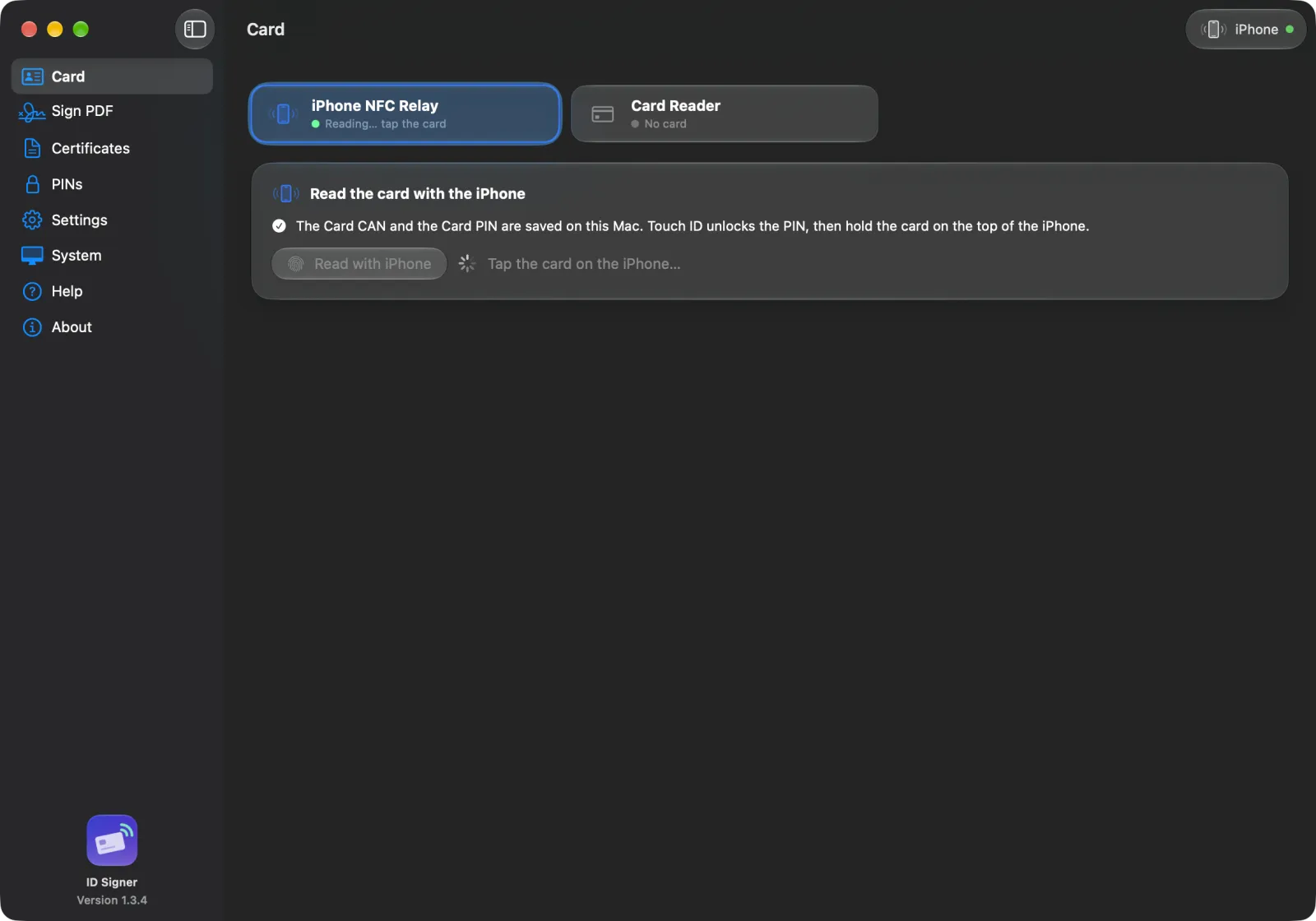
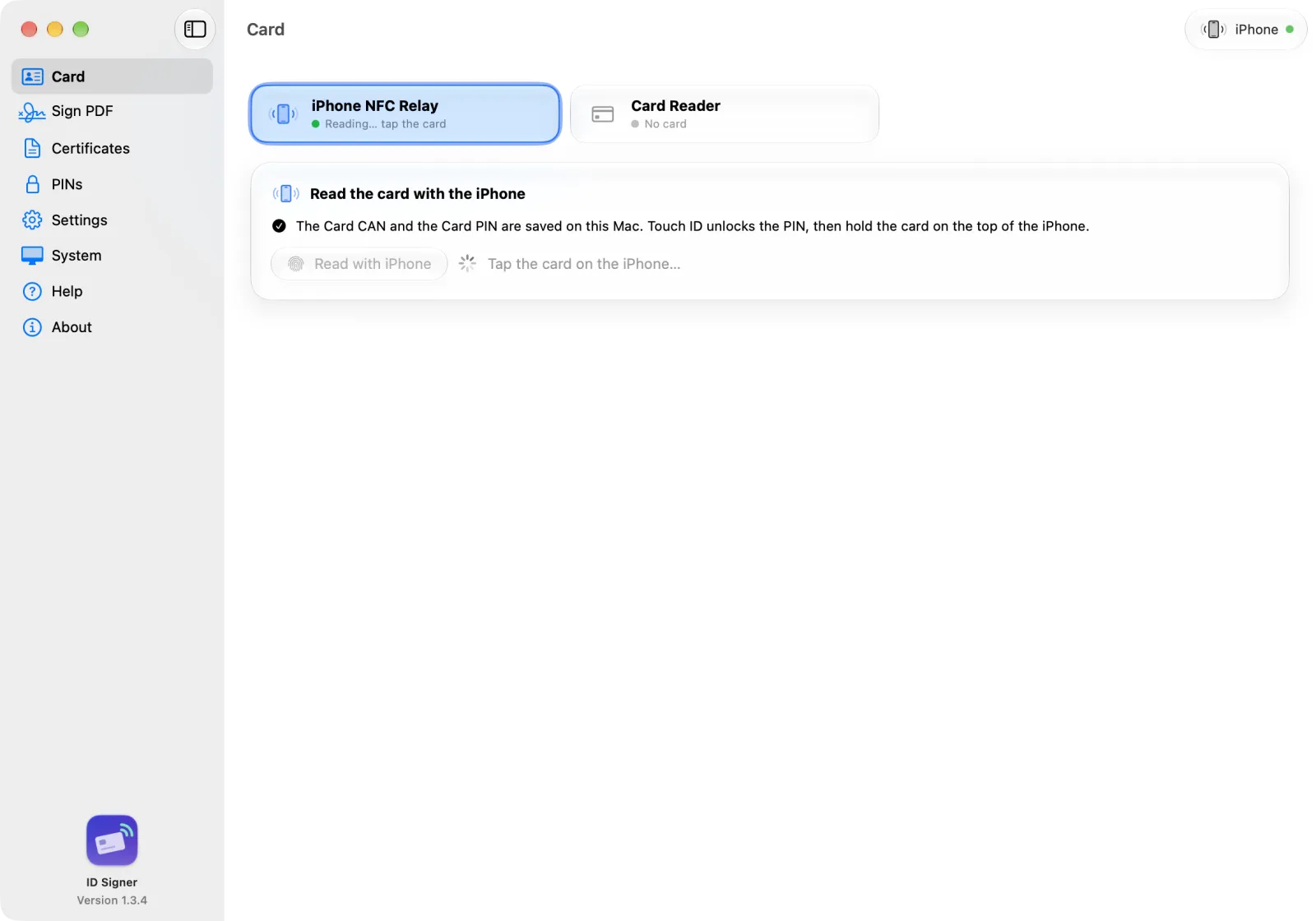
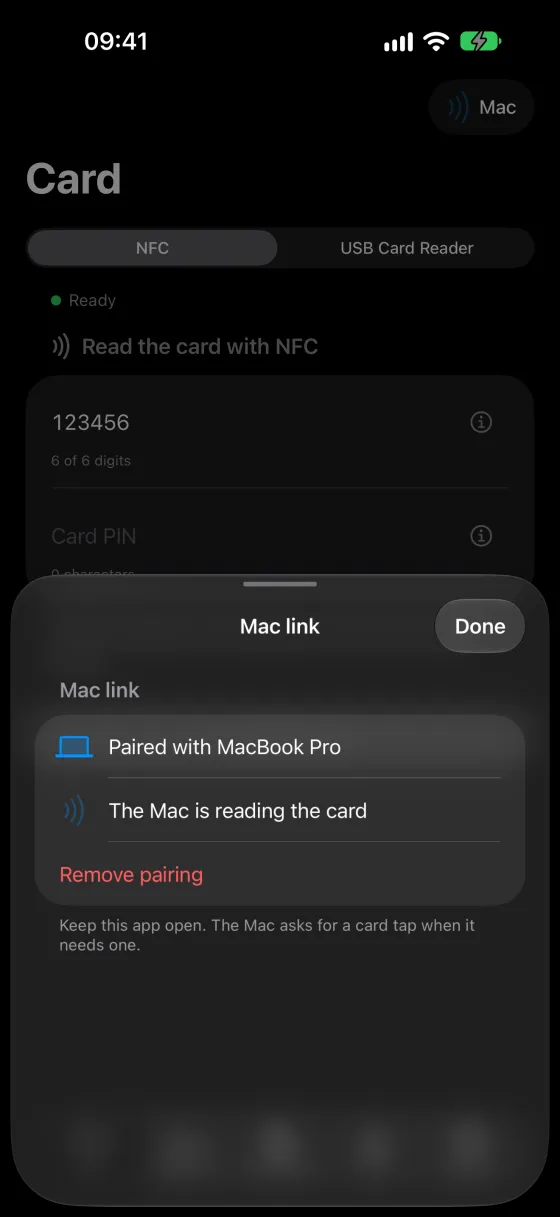
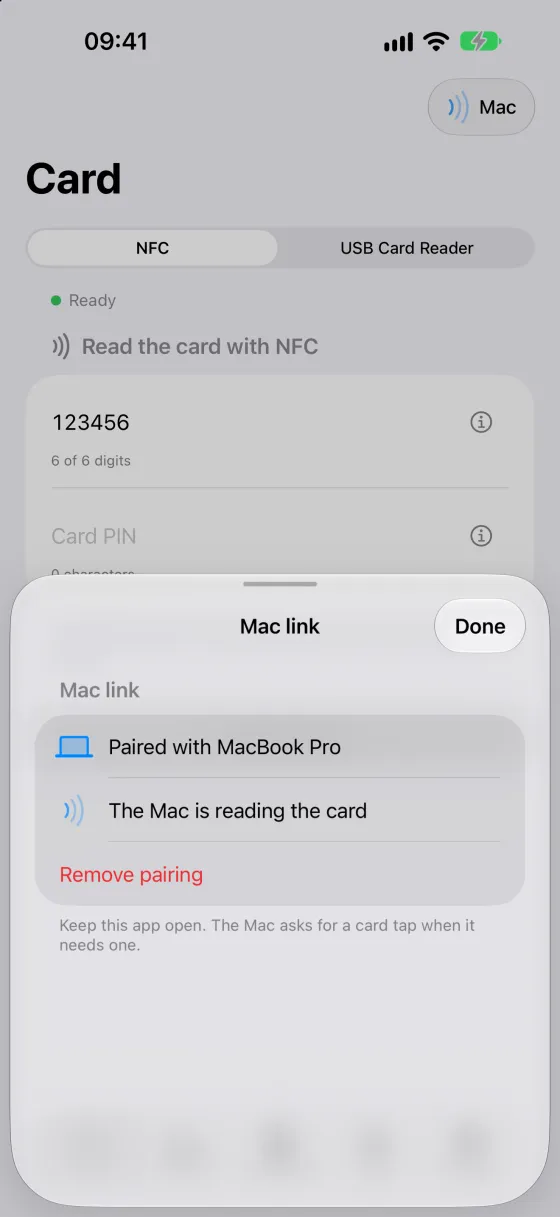
iPhone-ul devine cititor pentru MacYour iPhone becomes the Mac’s card reader
N-ai cititor USB? Mac-ul citește cardul prin NFC-ul iPhone-ului. Le asociezi o dată, cu un cod QR, și ții ID Signer deschis pe amândouă.No USB reader? Your Mac reads the card through your iPhone’s NFC. Pair them once with a QR code, and keep ID Signer open on both.
Deschizi un PDF semnat și vezi pentru fiecare semnătură cine a semnat, dacă documentul s-a schimbat după semnare, nivelul semnăturii și dacă certificatul e valabil și nerevocat. Aplicația recunoaște semnatarii din Lista de încredere a UE, buletinul electronic și certificatele de încredere Apple. Merge și cu PDF-uri protejate cu parolă. Nu ai nevoie de card.Open a signed PDF and see, for each signature, who signed, if the document changed after the signature, the signature level, and if the certificate is valid and not revoked. The app recognises signers from the EU Trusted List, the Romanian eID card and Apple’s trusted certificates. It works with password-protected PDFs too. No card needed.
✓IONESCU MIHAISemnătură calificată · Lista de încredere a UEQualified signature · EU Trusted ListValidăValid
!ANA-MARIA EXEMPLUDocumentul s-a schimbat după semnareThe document changed after the signatureAtențieAttention
Semnezi din aplicațiile AISign from your AI apps
Pe Mac, îi spui lui Claude, Cursor, Codex sau Gemini „Semnează contractul”. Pe iPhone, folosești acțiunea „Semnează PDF-ul cu ID Signer” din Scurtături sau cu Siri. Aplicația pune ștampila într-un loc liber, iar tu aprobi fiecare semnătură cu Touch ID, Face ID sau PIN-ul de semnare. Datele tale personale ajung la AI doar cu acordul tău.On the Mac, tell Claude, Cursor, Codex or Gemini to “Sign the contract”. On the iPhone, use the “Sign PDF with ID Signer” action in Shortcuts or with Siri. The stamp goes in a free spot, and you approve each signature with Touch ID, Face ID or your Signing PIN. Your personal data goes to the AI only with your consent.
ID Signertu aprobi cu Touch IDyou approve with Touch ID
· · ▸ · ·
PDF semnatSigned PDFo copie nouă, lângă originala new copy, next to the original
AplicațiaThe app
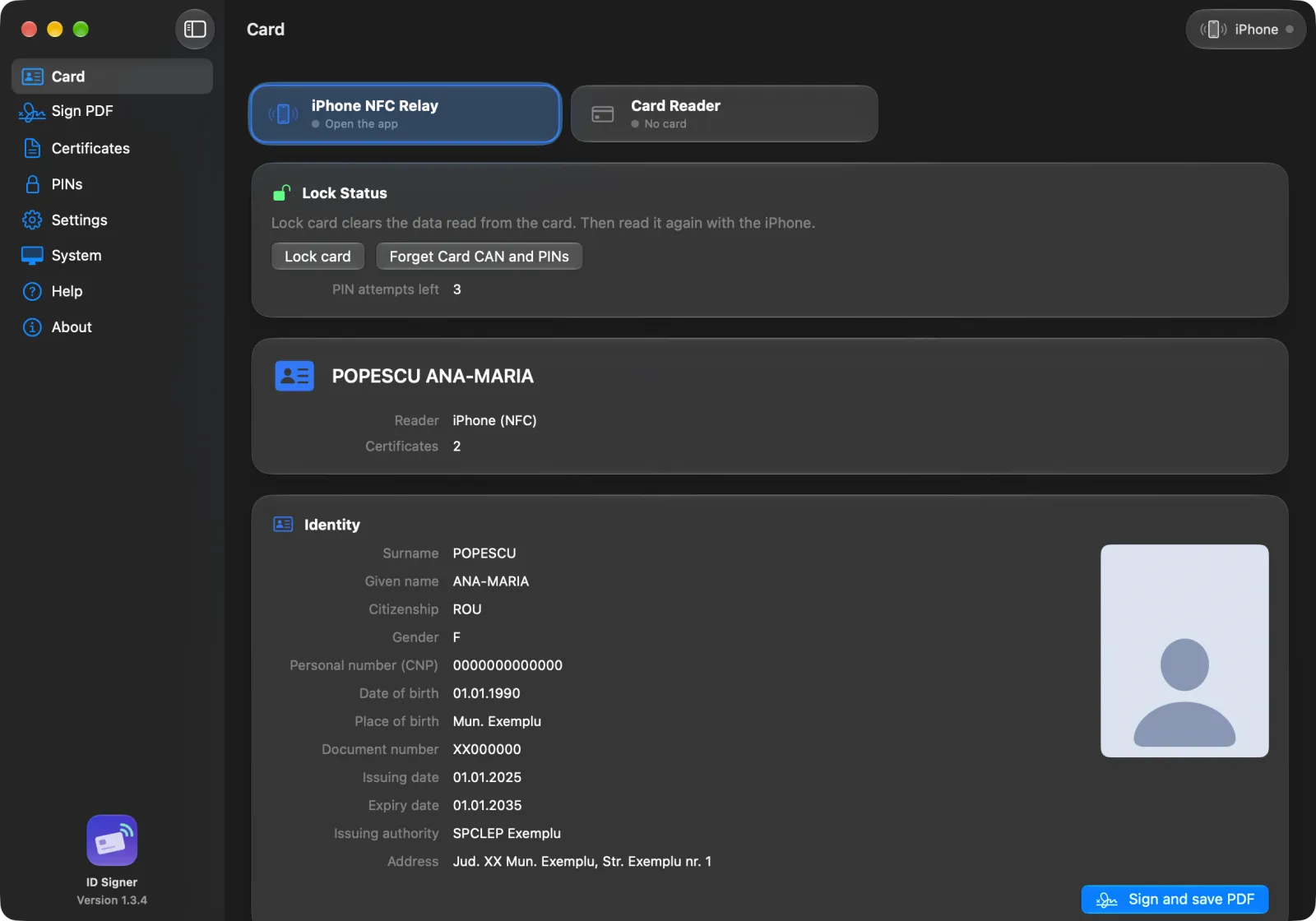
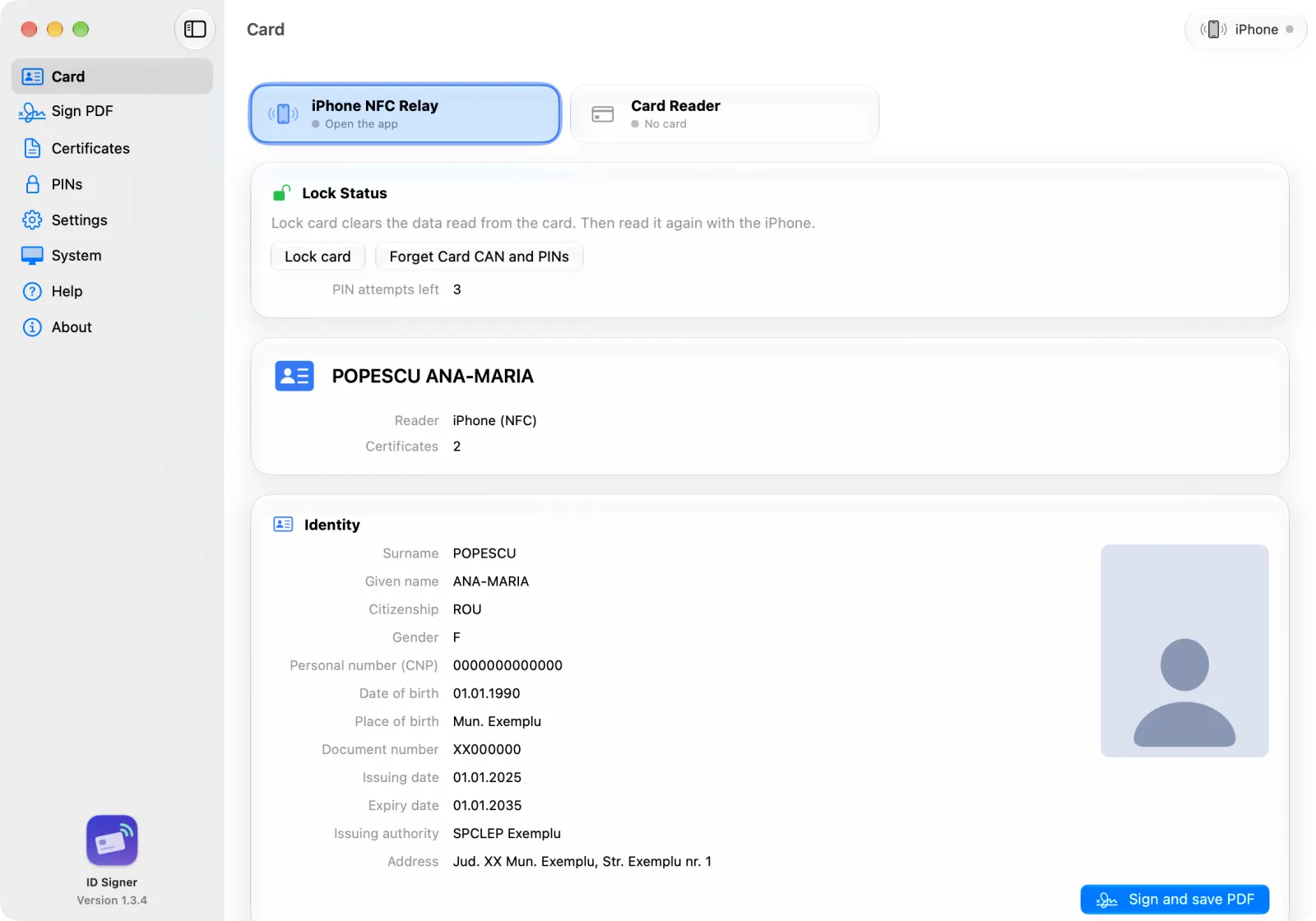
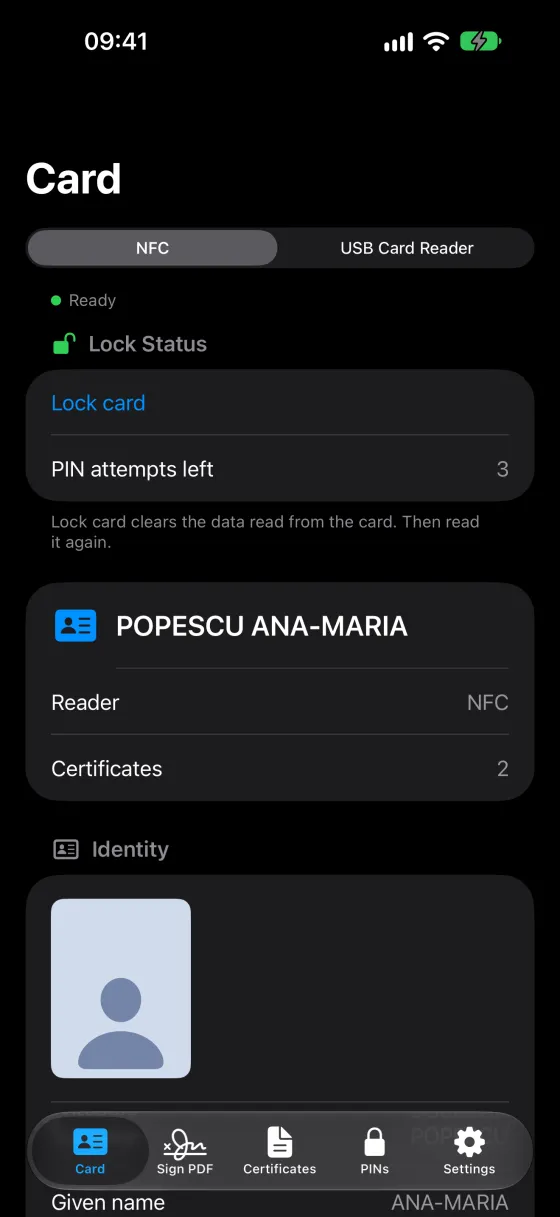
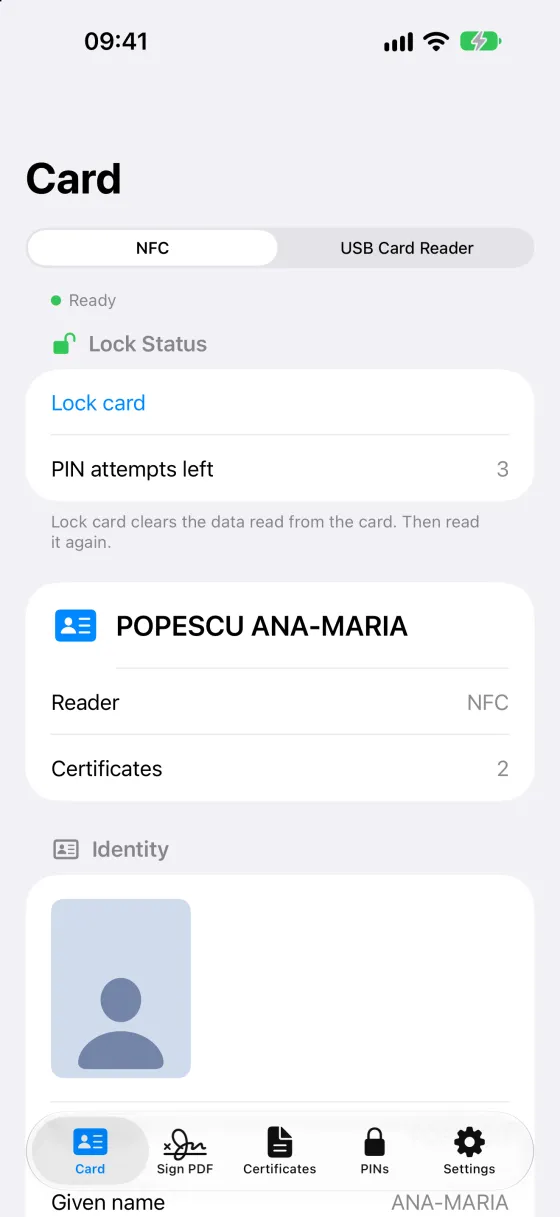
Ecrane din aplicațiile pentru Mac și iPhone.Screens from the Mac and iPhone apps.
Vezi datele de pe cipSee the data on the chip
Nume, adresă, valabilitate și fotografieName, address, expiry date and photo
Câte încercări de PIN mai ai, când cardul le raporteazăHow many PIN tries you have left, when the card reports them
Certificatele de pe card, cu titular, emitent și valabilitateThe card’s certificates, with holder, issuer and expiry
Semnezi PDF-uri cu certificatul de pe cardSign PDFs with your card’s certificate
Tragi ștampila unde vreiDrag the stamp where you want it
Touch ID sau Face ID deblochează PIN-ul salvatTouch ID or Face ID unlocks the saved PIN
Pe Mac sau pe iPhoneOn the Mac or the iPhone
Te autentifici de pe iPhone sau de pe MacSign in from your iPhone or your Mac
Site-ul cere, tu confirmi cu PIN-ulThe site asks, you confirm with your PIN
Le asociezi o dată; cu aplicația deschisă, Mac-ul citește prin iPhonePair once; with the app open, the Mac reads through the iPhone
Direct prin Wi-Fi, criptatDirectly over Wi-Fi, encrypted
Datele din capturi sunt inventate. Funcțiile sunt cele reale.The data in the screenshots is made up. The features are real.
Cum funcționeazăHow it works
Prima citire, în trei pași.Your first read, in three steps.
Introduci CAN-ul carduluiEnter the Card CAN
Cele 6 cifre din colțul din dreapta jos, de pe fața cardului. Cu ele, aplicația deschide o legătură securizată cu cipul.The 6 digits in the bottom-right corner on the front of the card. The app uses them to open a secure link to the chip.
Introduci PIN-ulEnter your PIN
PIN-ul cardului, ca să te autentifici și să-ți vezi datele. PIN-ul de semnare, ca să semnezi documente.Your Card PIN to sign in and see your data. Your Signing PIN to sign documents.
Ții cardul lângă iPhoneHold the card to your iPhone
Sau, pe Mac, îl pui în cititor. Pe iPhone, o bară arată progresul citirii. Dacă vrei, aplicația ține minte CAN-ul și PIN-urile, cu Touch ID sau Face ID.Or, on the Mac, put it in a reader. On the iPhone, a bar shows the reading progress. If you want, the app remembers the CAN and your PINs, behind Touch ID or Face ID.
Mac & iPhone
O singură aplicație, pentru Mac și iPhone.One app for your Mac and your iPhone.
Mac
Cardul apare în sistem ca token, așa că Safari, Chrome, Firefox și Adobe Acrobat îl pot folosi.
The card shows up as a system token, so Safari, Chrome, Firefox and Adobe Acrobat can use it.
Cu un cititor USB sau cu iPhone-ul ca cititor.
With a USB reader or with the iPhone as the reader.
Deschizi PDF-ul din Mail sau din Finder, ori îl tragi pe pictograma din Dock.
Open a PDF from Mail or Finder, or drop it on the Dock icon.
Aplicațiile AI (Claude, Cursor, Codex, Gemini) semnează PDF-uri prin ID Signer, după ce aprobi cu Touch ID.
AI apps (Claude, Cursor, Codex, Gemini) sign PDFs through ID Signer after you approve with Touch ID.
macOS 26 sau mai nou · cititor USB opționalmacOS 26 or later · USB reader optional
iPhone
Citești cardul prin NFC, inclusiv fotografia de pe cip.
Read the card over NFC, photo included.
Te autentifici în Safari și deschizi PDF-uri din „Partajează”, ca să le semnezi.
Sign in with Safari, and open PDFs from the share sheet to sign them.
Poate fi cititorul de carduri al Mac-ului.
Works as your Mac’s card reader.
Semnezi PDF-uri din Scurtături sau cu Siri, cu acțiunea „Semnează PDF-ul cu ID Signer”.
Sign PDFs from Shortcuts or with Siri, with the “Sign PDF with ID Signer” action.
iOS 26 sau mai nou · iPhone cu NFCiOS 26 or later · iPhone with NFC
Merge și la mine?Will it work for me?
Ai nevoie de patru lucruri.You need four things.
Cartea electronică de identitate (CEI)The electronic ID card (CEI)Cardul cu cip, cu certificatele activate.The chip card, with its certificates activated.
PIN-urile carduluiThe card's PINsLe-ai ales când ai ridicat cardul.You chose them when you picked up your card.
Un iPhone cu NFC sau, pentru Mac, un cititor USBAn iPhone with NFC or, for the Mac, a USB readerOrice iPhone recent are NFC.Every recent iPhone has NFC.
macOS 26 sau iOS 26, ori mai noumacOS 26 or iOS 26, or laterPe versiuni mai vechi, aplicația nu merge.The app does not run on older versions.
De ce poți avea încredereWhy you can trust it
Ce se întâmplă cu cardul și datele tale.What happens to your card and your data.
Datele nu ajung la noiYour data never reaches us
Nu avem server pentru aplicație și nu primim datele cardului. La autentificare, site-ul primește certificatul. La verificarea semnăturilor, aplicația descarcă Lista de încredere a UE și întreabă emitentul dacă certificatul e revocat.We run no server for the app and never receive your card data. When you sign in, the website receives your certificate. To verify signatures, the app downloads the EU Trusted List and asks the issuer if a certificate is revoked.
Construită pe tehnologia AppleBuilt on Apple technology
Pe Mac, cardul devine un token CryptoTokenKit, sistemul Apple pentru carduri inteligente. De aceea îl pot folosi browserele și Adobe Acrobat.On the Mac, the card becomes a CryptoTokenKit token, Apple’s own smart card framework. That’s why browsers and Adobe Acrobat can use it.
Un PIN respins nu se mai trimiteA rejected PIN is not sent again
Dacă cardul respinge un PIN salvat, aplicația îl șterge, ca să nu-l mai încerce.If the card rejects a saved PIN, the app deletes it, so it never tries it again.
Certificatul tău, de la MAIYour certificate, from MAI
Semnezi cu certificatul de pe cardul tău. Aplicația nu emite certificate.You sign with the certificate on your own card. The app doesn’t issue certificates.
Legătură criptatăEncrypted link
Mac-ul și iPhone-ul comunică direct prin Wi-Fi, în rețeaua ta sau când sunt aproape unul de altul, cu o cheie stabilită la asociere. Nimic nu trece prin serverele noastre.The Mac and the iPhone talk directly over Wi-Fi, on your network or when they are near each other, with a key set when you pair them. Nothing goes through our servers.
Făcută în RomâniaMade in Romania
De Graffino, din Sibiu. Datele companiei sunt la „Date legale”.By Graffino, in Sibiu. Company details are under “Legal notice”.
Nu-ți cerem niciodată PIN-ul sau CAN-ul la telefon, pe e-mail sau prin SMS.We will never ask for your PIN or CAN by phone, email or text.
PrețPrice
Citirea cardului și verificarea semnăturilor sunt gratuite. Pentru semnare plătești o singură dată și semnezi de câte ori vrei.Reading your card and verifying signatures are free. Pay once for signing, and sign as often as you want.
Fără abonament. Plătești ID Signer Pro o singură dată, îl folosești pe Mac și pe iPhone și îl poți împărți cu familia prin Partajarea familială. Încearcă ID Signer Pro gratuit 3 zile.No subscription. Pay for ID Signer Pro once, use it on your Mac and iPhone, and share it with your family through Family Sharing. Try ID Signer Pro free for 3 days.
Ce primeștiWhat you get
GratuitFree0
ID Signer Pro49,99 lei€9.99plată unicăone time
Citești datele cardului; pe iPhone, și fotografiaRead the card data, plus the photo on the iPhone
Verifici semnăturile din orice PDF, și protejat cu parolă: cine a semnat, dacă documentul s-a schimbat, dacă certificatul e valabil și nerevocat; inclusiv semnăturile calificate din UEVerify the signatures in any PDF, also a password-protected one: who signed, if the document changed, if the certificate is valid and not revoked; qualified EU signatures included
✓
✓
Verifici semnături din aplicațiile AI pe Mac și din Scurtături sau Siri pe iPhoneVerify signatures from AI apps on the Mac, and from Shortcuts or Siri on the iPhone
✓
✓
Autentificare și semnare (Adobe) pe Mac, cu cititor USBSign-in and signing (Adobe) on the Mac with a USB reader
—
✓
Semnezi orice PDF, cu ștampilă vizibilăSign any PDF, with a visible stamp
—
✓
Fiecare semnătură e verificată imediat după semnareEach signature is checked right after you sign
—
✓
PDF semnat cu datele tale de identitate, blocat după semnareA signed PDF with your identity data, locked after the signature
—
✓
Semnezi din aplicațiile AI pe Mac și din Scurtături sau Siri pe iPhoneSign from AI apps on the Mac, and from Shortcuts or Siri on the iPhone
—
✓
iPhone-ul ca cititor pentru MacYour iPhone as the Mac’s reader
—
✓
Autentificare prin iPhone (în Safari pe iPhone și în browserele de pe Mac)Sign-in through the iPhone (Safari on the iPhone, browsers on the Mac)
—
✓
ID Signer Pro pe Mac și iPhone, cu Partajarea familialăID Signer Pro on Mac and iPhone, with Family Sharing
—
✓
Prețul include TVA. Apple se ocupă de plată și de rambursări. App Store îți arată prețul în moneda ta.The price includes VAT. Apple handles payment and refunds. The App Store shows the price in your currency.
Întrebări frecventeFAQ
Ce ne întreabă lumea.What people ask us.
Am nevoie de un cititor de carduri?Do I need a card reader?
Nu. iPhone-ul citește cardul prin NFC, iar Mac-ul poate folosi iPhone-ul drept cititor (ID Signer Pro). Pe Mac merge și un cititor USB (ID Signer Pro).No. The iPhone reads the card over NFC, and the Mac can use the iPhone as its reader (ID Signer Pro). A USB reader also works on the Mac (ID Signer Pro).
Pot folosi aplicația cu VoiceOver?Can I use the app with VoiceOver?
Da. Pe Mac și pe iPhone, butoanele și stările au nume pentru VoiceOver, iar erorile se citesc cu voce. Textul crește cu dimensiunea aleasă în sistem, animațiile se opresc cu „Reducere mișcare”, iar stările nu depind doar de culoare. Pe Mac merge și din tastatură.Yes. On the Mac and the iPhone, buttons and states have names for VoiceOver, and errors are read aloud. Text grows with the size you choose in the system, animations stop with Reduce Motion, and states do not depend on colour alone. On the Mac, the keyboard works too.
Unde găsesc CAN-ul cardului?Where is the Card CAN?
Pe fața cardului, în colțul din dreapta jos, sub data expirării: 6 cifre. Nu e un PIN.On the front of the card, bottom right, under the expiry date. It’s 6 digits, and it’s not a PIN.
Ce PIN-uri am?Which PINs do I have?
PIN-ul cardului, de 4 cifre, ca să te autentifici și să-ți vezi datele. PIN-ul de semnare, de minimum 6 caractere, ca să semnezi documente. Le-ai ales când ai ridicat cardul.Your 4-digit Card PIN, to sign in and see your data. Your Signing PIN, at least 6 characters, to sign documents. You chose both when you picked up your card.
Ce valoare juridică are semnătura?What legal effect does the signature have?
Aplicația folosește certificatul de semnătură electronică avansată emis gratuit de MAI, dacă e pe card și e valabil.The app uses the advanced electronic signature certificate issued free by the Ministry of Internal Affairs (MAI), if it is on your card and valid.
În România, un document semnat așa are, în condițiile legii, aceeași valoare ca unul semnat de mână.*In Romania, a document signed this way has, subject to legal requirements, the same effect as one signed by hand.*
* Unele utilizări pot cere o semnătură calificată.* Some uses may require a qualified signature.
Verifică ce cere instituția la care depui documentul.Check what the institution you file with requires.
Cum verific o semnătură?How do I check a signature?
În Semnează PDF, alegi Verifică și deschizi PDF-ul. Pentru fiecare semnătură vezi cine a semnat, dacă documentul s-a schimbat după semnare, nivelul (calificată sau avansată) și dacă certificatul e valabil. Ca să afle dacă un certificat e revocat, aplicația întreabă emitentul certificatului; poți opri asta în Setări. Pentru un PDF protejat cu parolă, verificarea merge și fără parolă; cu parola vezi și detaliile. Verificarea e gratuită.In Sign PDF, choose Verify and open the PDF. For each signature you see who signed, if the document changed after the signature, the level (qualified or advanced) and if the certificate is valid. To find out if a certificate is revoked, the app asks the certificate's issuer; you can turn this off in Settings. A password-protected PDF verifies without the password; with it, you also see the details. Verification is free.
Poate o aplicație AI să semneze fără mine?Can an AI app sign without me?
Nu. Aprobi fiecare semnătură cu Touch ID, Face ID sau PIN-ul de semnare. Aplicația AI nu primește niciodată PIN-urile sau CAN-ul.No. You approve each signature with Touch ID, Face ID or your Signing PIN. The AI app never gets your PINs or your CAN.
Pe Mac, semnarea din aplicațiile AI e oprită până o pornești în Setări.On the Mac, signing from AI apps stays off until you turn it on in Settings.
Numele și datele tale de identitate ajung la aplicația AI doar dacă activezi separat „Trimite datele mele personale aplicațiilor AI”.Your name and identity data go to the AI app only if you also turn on “Share my personal data with AI apps”.
Originalul rămâne neschimbat. Aplicația salvează o copie semnată și nu pune ștampila peste text.The original stays unchanged. The app saves a signed copy and doesn’t put the stamp over text.
Ce se întâmplă dacă greșesc PIN-ul?What if I type a wrong PIN?
Fiecare PIN greșit consumă o încercare. Un PIN pe care cardul îl respinge nu se mai trimite. Dacă PIN-ul se blochează, aplicația nu îl poate debloca. Mergi cu cardul la Evidența Populației, unde se deblochează gratuit.Each wrong PIN uses up one try. The app never sends a PIN again after the card rejects it. If the PIN is blocked, the app can’t unblock it. Take your card to your local population records office (Evidența Populației). It unblocks the PIN for free.
PDF-ul cu datele de identitate este un act oficial?Is the identity PDF an official document?
Nu. E un rezumat al datelor de pe cip, semnat cu certificatul tău. Îl faci cu „Exportă ca PDF semnat”, pe ecranul Card. După semnare, PDF-ul e blocat. În subsol scrie că a fost generat și semnat digital cu acordul tău, prin ID Signer. Nu înlocuiește cartea de identitate.No. It’s a summary of the data on the chip, signed with your certificate. You make it with “Export as Signed PDF” on the Card screen. After the signature, the PDF is locked. Its footer says that it was generated and digitally signed with your consent, through ID Signer. It doesn’t replace your ID card.
Pot opri sunetele aplicației?Can I turn off the app sounds?
Da. În Setări › Sunete, oprești „Sunetele aplicației”, pe Mac sau pe iPhone. Când Mac-ul citește cardul prin iPhone, „Sunete pentru citirile Mac-ului” alege dispozitivul care redă sunetele. Doar unul dintre ele le redă.Yes. In Settings › Sounds, turn off “App Sounds”, on the Mac or the iPhone. When the Mac reads the card through the iPhone, “Sounds for Mac reads” chooses the device that plays the sounds. Only one of them plays them.
Achiziția merge pe ambele dispozitive?Does the purchase work on both devices?
Da. Cu același cont Apple, ID Signer Pro merge pe Mac și pe iPhone. Prin Partajarea familială îl primesc și membrii familiei. Dacă ID Signer Pro nu apare pe un dispozitiv nou, apasă „Restaurează achizițiile”. Poți încerca ID Signer Pro gratuit 3 zile, o singură dată pe cont Apple. Apoi funcțiile Pro se blochează din nou și nu se plătește nimic automat.Yes. With the same Apple Account, ID Signer Pro works on both the Mac and the iPhone. With Family Sharing, your family members get it too. If ID Signer Pro doesn’t show up on a new device, tap “Restore Purchases”. You can try ID Signer Pro free for 3 days, once per Apple Account. Then the Pro features lock again, and nothing is charged automatically.
Aplicația este a statului?Is this a government app?
Nu. ID Signer e făcut de Graffino și nu e afiliat cu Ministerul Afacerilor Interne sau cu Autoritatea pentru Digitalizarea României.No. ID Signer is made by Graffino and is not affiliated with the Ministry of Internal Affairs or the Authority for Romania's Digitalisation.
AjutorHelp
Când ceva nu merge.When something doesn’t work.
Aplicația are propriul Ajutor: Începe aici, câte o pagină pentru fiecare sarcină, Bine de știut și Rezolvă o problemă, cu demonstrații animate. Aici găsești problemele cele mai dese.The app has its own Help: Start here, a page for each task, Good to know and Fix a problem, with animated demos. Here are the most common problems.
Aplicația nu găsește cardulThe app can’t find the card
Scoate cititorul și conectează-l din nou.
Unplug the reader and plug it in again.
Introdu cardul până la capăt, cu cipul înainte.
Push the card all the way in, chip first.
Așteaptă câteva secunde.
Wait a few seconds.
Cardul s-a mișcat sau citirea s-a opritThe card moved or the read stopped
Ține cardul lipit de partea de sus a iPhone-ului.
Hold the card against the top of the iPhone.
Nu-l mișca până apare „Gata”.
Keep it still until you see “Done”.
La citire, aplicația poate reîncerca singură dacă legătura NFC se întrerupe.
During a read, the app may retry on its own if the NFC link drops.
Nu atinge ecranul în timpul citirii. Dacă fereastra NFC se închide, aplicația îți spune că citirea s-a oprit. Începe din nou.
Don’t touch the screen during a read. If the NFC sheet closes, the app tells you that the read stopped. Start again.
Dacă cardul nu răspunde 10 secunde, citirea se oprește. Îndepărtează cardul, apoi ține-l din nou pe iPhone.
If the card doesn’t answer for 10 seconds, the read stops. Take the card away, then hold it on the iPhone again.
Mac-ul nu găsește iPhone-ulYour Mac can’t find your iPhone
Deschide aplicația pe iPhone.
Open the app on the iPhone.
Pornește Wi-Fi pe ambele și ține iPhone-ul lângă Mac. Aceeași rețea Wi-Fi nu este necesară.
Turn on Wi-Fi on both, and keep the iPhone near the Mac. The same Wi-Fi network is not necessary.
Permite accesul la rețeaua locală: pe iPhone în Configurări, pe Mac în Configurări sistem.
Allow Local Network access: in Settings on the iPhone, in System Settings on the Mac.
Firefox nu vede cardulFirefox doesn’t offer your certificate
Actualizează Firefox la ultima versiune.
Update Firefox to the latest version.
Repornește Firefox după ce aplicația citește cardul.
Restart Firefox after the app reads the card.
Alege certificatul când site-ul îl cere.
Choose the certificate when the site asks.
Suport:Support:support@graffino.com
Citește-ți cardul gratuit, apoi decide.Read your card for free, then decide.
Documente legaleLegal
Confidențialitate, termeni și date legale.Privacy, terms and legal notice.
Politica de confidențialitatePrivacy policy
Ultima actualizare: 13 noiembrie 2026.Last updated: 13 November 2026.
Operator pentru corespondență, site și achiziții: Graffino Software SRL, CUI RO35753397, J32/341/2016, Calea Dumbrăvii 71, et. 1, ap. 4, 550324 Sibiu, România. Contact: support@graffino.com; protecția datelor: data.protection@graffino.com.
Controller for correspondence, the website and purchases: Graffino Software SRL, VAT ID RO35753397, trade register no. J32/341/2016, Calea Dumbrăvii 71, floor 1, apt. 4, 550324 Sibiu, Romania. Contact: support@graffino.com; data protection: data.protection@graffino.com.
Datele de pe card (identitate, CNP, fotografie, certificate) sunt citite și prelucrate doar pe dispozitivul tău. Nu le primim, nu le stocăm și nu le transmitem.
The card data (identity, personal number, photo, certificates) is read and processed only on your device. We do not receive, store or transmit it.
Dacă alegi, CAN-ul cardului și PIN-urile sunt păstrate în Keychain-ul dispozitivului, protejate de Touch ID sau Face ID. Le ștergi oricând din aplicație.
If you choose, the Card CAN and the PINs are kept in the device Keychain, protected by Touch ID or Face ID. You delete them in the app at any time.
Legătura Mac–iPhone folosește Wi-Fi (rețeaua locală sau o legătură Wi-Fi directă, când dispozitivele sunt aproape), criptată cu o cheie din asociere. Nu trece prin serverele noastre.
The Mac–iPhone link uses Wi-Fi (the local network, or a direct Wi-Fi link when the devices are near each other), encrypted with a key from the pairing. It does not pass through our servers.
Aplicații AI (Pro, oprit implicit): dacă activezi „Permite aplicațiilor AI să semneze PDF-uri” pe Mac sau folosești acțiunea „Semnează PDF-ul cu ID Signer” pe iPhone, aplicația AI aleasă de tine (de exemplu Claude) primește calea PDF-ului și rezultatul: calea copiei semnate, pagina și locul ștampilei. Aprobi fiecare semnătură cu Touch ID, Face ID sau PIN-ul de semnare. Numele tău, datele de identitate și subiectul certificatului ajung la aplicația AI doar dacă activezi separat „Trimite datele mele personale aplicațiilor AI”. Ștampila din PDF-ul semnat arată totuși numele tău, iar aplicația AI poate citi PDF-ul. Aplicația AI își are propria politică de confidențialitate; noi nu primim aceste date.
AI apps (Pro, off by default): if you turn on "Let AI apps sign PDFs" on the Mac or use the "Sign PDF with ID Signer" action on the iPhone, the AI app you choose (for example Claude) gets the PDF's path and the result: the path of the signed copy, the page and the stamp place. You approve each signature with Touch ID, Face ID or the Signing PIN. Your name, identity data and certificate subject go to the AI app only if you also turn on "Share my personal data with AI apps". The stamp in the signed PDF still shows your name, and the AI app can read the PDF. The AI app has its own privacy policy; we do not receive this data.
Verificarea semnăturilor (gratuit): PDF-ul rămâne pe dispozitiv. Ca să afle dacă un certificat este revocat, aplicația trimite numărul de serie al certificatului la emitentul lui (OCSP sau CRL); emitentul vede ce certificat verifici. Poți opri asta în Setări › „Verifică revocarea online”. Aplicația descarcă și lista de încredere a UE de la Comisia Europeană și listele naționale, fără date despre tine.
Signature verification (free): the PDF stays on your device. To find out if a certificate is revoked, the app sends the certificate's serial number to its issuer (OCSP or CRL); the issuer sees which certificate you check. You can turn this off in Settings › "Check revocation online". The app also downloads the EU Trusted List from the European Commission and the national lists, with no data about you.
Apple procesează achizițiile. Nu primim datele tale de plată.
Apple processes the purchases. We do not receive your payment data.
Aplicația nu folosește analiză, publicitate sau urmărire. Nu ne trimite date de pe card sau capturi cu ele în mesajele de suport.
The app uses no analytics, advertising or tracking. Do not send card data, or screenshots that show it, in support messages.
Site-ul: găzduit pe GitHub Pages (GitHub, Inc.), care primește adresa IP pentru a livra pagina. Fonturile Google se încarcă doar cu acordul tău (Setări cookie-uri).
Statistici pe site (doar cu acordul tău, Setări cookie-uri › Statistici): site-ul încarcă Google Tag Manager și Google Analytics (Google Ireland Ltd.), ca să numărăm vizitele și să vedem ce pagini și linkuri sunt folosite. Ele pun cookie-uri (_ga, _ga_*) care durează până la 2 ani și primesc adresa IP, browserul, dispozitivul și paginile vizitate; datele pot fi transferate în SUA, în baza Cadrului UE–SUA privind protecția datelor. Temeiul: consimțământul tău (art. 6 alin. (1) lit. a GDPR), pe care îl poți retrage oricând din Setări cookie-uri. Fără acord, nu se încarcă și site-ul nu pune cookie-uri. Nu folosim publicitate.
The website: hosted on GitHub Pages (GitHub, Inc.), which receives the IP address to deliver the page. Google Fonts load only with your consent (Cookie settings).
Website statistics (only with your consent, Cookie settings › Statistics): the site loads Google Tag Manager and Google Analytics (Google Ireland Ltd.), to count visits and see which pages and links people use. They set cookies (_ga, _ga_*) that last up to 2 years and receive your IP address, browser, device and the pages you visit; the data can go to the USA under the EU–US Data Privacy Framework. The legal basis is your consent (Art. 6(1)(a) GDPR), which you can withdraw at any time in Cookie settings. Without consent, they do not load and the site sets no cookies. We use no advertising.
Ai drepturile din GDPR: acces, rectificare, ștergere, opoziție și plângere la ANSPDCP. Scrie-ne la data.protection@graffino.com.
You have your GDPR rights: access, rectification, erasure, objection and a complaint to the Romanian DPA (ANSPDCP). Write to data.protection@graffino.com.
Politicile generale Graffino: confidențialitate și GDPR. Pentru ID Signer se aplică textul de aici.
The general Graffino policies: privacy and GDPR. For ID Signer, the text here applies.
ID Signer nu este un produs al Ministerului Afacerilor Interne și nu este afiliat cu acesta. Cardul, certificatele și PIN-urile sunt ale tale și ale emitentului.
ID Signer is not a product of, and is not affiliated with, the Ministry of Internal Affairs. The card, its certificates and its PINs belong to you and the issuer.
Ești responsabil pentru PIN-urile tale și pentru documentele pe care le semnezi. Ștampila vizibilă este o imagine; validitatea o arată semnătura digitală din PDF.
You are responsible for your PINs and the documents you sign. The visible stamp is an image; the digital signature in the PDF shows the validity.
Rambursările se cer de la Apple, la reportaproblem.apple.com. Drepturile tale legale de consumator rămân neatinse.
Refunds are requested from Apple, at reportaproblem.apple.com. Your statutory consumer rights are not affected.
Legea aplicabilă: legea română, fără a-ți lua protecția pe care ți-o dă legea țării în care locuiești.
Governing law: Romanian law, without removing the protection that the law of your country of residence gives you.
Contact juridic: legal@graffino.com. Termenii generali Graffino: graffino.com/terms-of-service; pentru ID Signer se aplică textul de aici.
Legal contact: legal@graffino.com. The general Graffino terms: graffino.com/terms-of-service; for ID Signer, the text here applies.
Date legaleLegal notice
Editor: Graffino Software SRL, CUI RO35753397, Reg. Com. J32/341/2016, Calea Dumbrăvii 71, et. 1, ap. 4, 550324 Sibiu, România. graffino.com
Raportează o vulnerabilitate la legal@graffino.com, cu „Security” în subiect. Scrie versiunea aplicației, platforma și pașii. Nu trimite date de pe card sau PIN-uri.
Report a vulnerability to legal@graffino.com, with "Security" in the subject. Give the app version, the platform and the steps. Do not send card data or PINs.
Confirmăm raportul în 5 zile lucrătoare, reparăm vulnerabilitatea într-o versiune nouă și raportăm vulnerabilitățile exploatate activ conform Regulamentului UE privind reziliența cibernetică (CRA).
We confirm the report within 5 working days, fix the vulnerability in a new release, and report actively exploited vulnerabilities as the EU Cyber Resilience Act (CRA) requires.
Folosim stocarea necesară pentru limbă, temă și alegerea ta. Cu acordul tău, încărcăm fonturile site-ului de la Google Fonts și statisticile de vizitare (Google Analytics), care primesc adresa ta IP. Fără publicitate. Aplicația nu are statistici.We use the storage that the site needs for the language, the theme and your choice. With your consent, we load the site fonts from Google Fonts and visit statistics (Google Analytics), which receive your IP address. No advertising. The app has no analytics.